How to Show a Full-Screen Stopwatch on a TV or Projector
Put a big, readable stopwatch on a TV, projector or second screen with HDMI, Chromecast, AirPlay or the TV's browser, plus fixes for lag and dimming.
A stopwatch on a laptop is fine when you are the only one watching it. Once a whole room needs to see the time, whether that's a class doing a timed relay, a gym running a plank contest or a family quiz night, the laptop screen is too small and everyone ends up crowding round it.
The fix is to put the stopwatch on the biggest screen in the room. That takes two steps: get the browser onto the TV or projector, then make the stopwatch fill it. This guide covers both, plus the problems that show up mid-event: a dimming screen, a lagging picture, digits too small to read.
The quick version
If you have an HDMI cable and five minutes, do this:
- Plug the laptop into the TV or projector with HDMI (use a USB-C to HDMI adapter if your laptop has no HDMI port).
- On Windows, press Windows + P and choose Duplicate. On a Mac, open System Settings → Displays and set the TV to mirror your screen.
- Open the online stopwatch in your browser.
- Press F (or click Full screen). The stopwatch now fills the whole display, with no address bar, tabs or menus.
- Press Space to start, L to record a lap and R to reset. Press Esc to leave full screen.
That covers most rooms. The rest of this guide is for when there is no cable, when you need the laptop for something else, or when something goes wrong.
Which way to connect: the options compared
There are five common ways to get a browser tab onto a big screen. The main differences are the kit you need and the delay they add.
| Method | What you need | Delay on screen | Laptop free for other work? | Best for |
|---|---|---|---|---|
| HDMI cable | Cable, plus an adapter for USB-C laptops | None you will notice | Yes, if you choose Extend | Classrooms, gyms, anything where timing matters |
| Cast a tab (Chromecast / Google TV) | Chrome or Edge, TV on the same Wi-Fi | Short, can stutter on busy Wi-Fi | Mostly, the cast follows that one tab | Living rooms, meeting rooms with a Chromecast |
| AirPlay (Mac or iPhone) | Apple TV or an AirPlay-compatible TV | Short | Yes on a Mac using it as a separate display | Apple households and offices |
| Miracast (Windows + K) | Windows PC and a Miracast TV or dongle | Short | Yes, if you choose Extend | Offices with wireless display adapters |
| The TV's own browser | A smart TV with a web browser | None, it runs on the TV | No laptop needed | A quick timer when nobody wants to set anything up |
If you only remember one row, make it the first. A cable is boring, but it has no delay and never drops on crowded Wi-Fi.
Step by step for each method
HDMI cable
Plug in and pick a display mode with Windows + P (or System Settings → Displays on a Mac). Duplicate is the simplest: whatever you see, the room sees. Extend turns the TV into a second desktop, which is better if you need the laptop for something else, such as a scoring sheet. Drag the browser window across to the TV, click inside it and press F. The stopwatch fills the TV while your laptop screen stays yours.
Casting from Chrome or Edge
Open the stopwatch, then open the browser's three-dot menu and choose Cast (in newer versions of Chrome it sits under Cast, save and share). Pick your TV and make sure the source is set to the tab, not the whole desktop. Press F on the laptop and the cast switches to full screen too.
The picture travels over Wi-Fi, so expect a short delay. The time is still measured on your laptop, so when you press stop, the frozen number is the right one even if the TV catches up a moment later.
AirPlay from a Mac or iPhone
On a Mac, open Control Center → Screen Mirroring and pick the Apple TV or AirPlay-compatible TV. You can mirror the whole screen or use the TV as a separate display. On an iPhone, open the stopwatch in Safari, turn the phone sideways, then use Screen Mirroring in Control Center.
One catch on iPhone: Safari doesn't let a web page take over the screen completely the way a laptop browser does. Landscape gets you close. Adding ClockAura to your Home Screen (Share → Add to Home Screen) opens it without the address bar, which helps.
Miracast with Windows + K
Press Windows + K, pick the TV or wireless adapter, then use Windows + P to choose Duplicate or Extend. Quality varies a lot between TVs, so test it before the event, not in front of thirty people.
The TV's own browser
Most smart TVs have a web browser in the app list. Type clockaura.com/stopwatch with the remote and it runs on the TV itself, with no laptop and no delay. The downside is control: starting and stopping with a remote is clumsy, so this suits a long, unattended count-up better than a race.
Make it readable from the back of the room
Use the stopwatch's own full screen, not just the browser's. Pressing F on the stopwatch page makes the stopwatch fill the display, so the digits scale up with the screen. The browser's own full screen (F11 on Windows, Control + Command + F on a Mac) hides the address bar but keeps the rest of the page, which leaves you with small digits and a lot of wasted space.
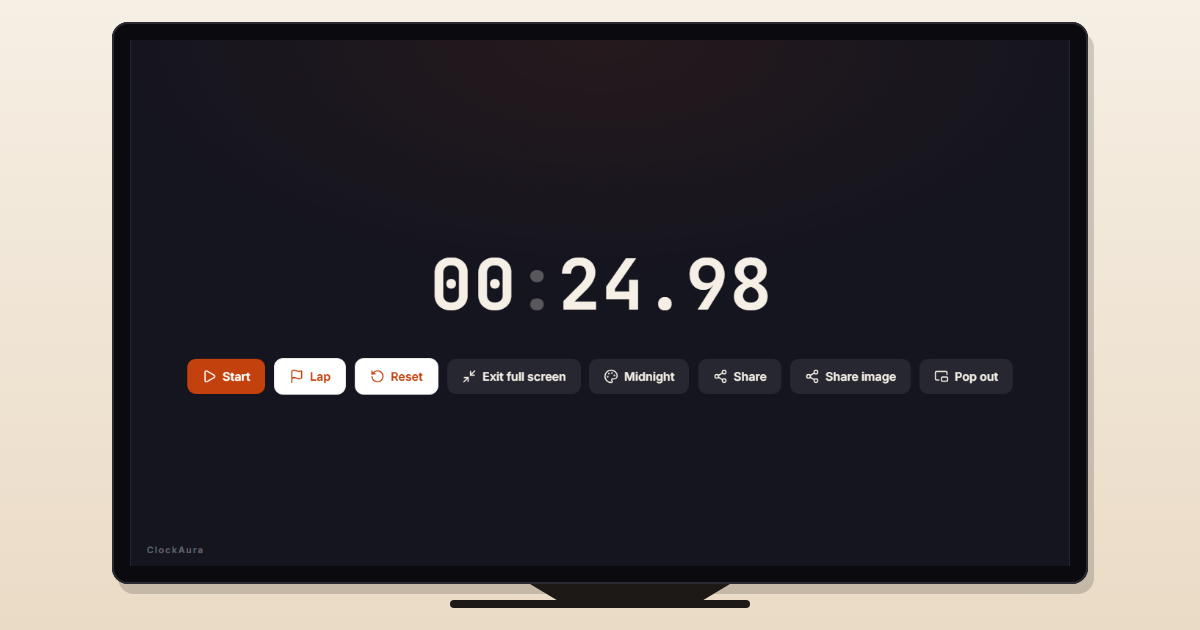
Pick a display theme for the room. The palette button next to Full screen cycles through Paper, Midnight, Chalkboard, High contrast and Sunrise, and your choice is remembered on that device. Midnight (light digits on a near-black background, shown above) is easy on the eyes in a dim room and looks good on TVs. In a bright room with a projector, try High contrast. The quickest test is to stand at the back, tap through the themes and keep the one you can read without squinting.
Check the distance. Sign makers use a rough rule of about 2.5 cm (1 inch) of letter height for every 3 metres (10 feet) of viewing distance. If the back row is 9 metres away, aim for digits at least 7 to 8 cm tall on the screen. A full-screen stopwatch on a 50-inch TV or a normal classroom projector clears that easily. A laptop screen across a hall does not.
Stop the screen from going dark halfway through
Nothing kills a plank contest like the TV going to sleep at 2:47. Three things can turn the screen off, and each has its own fix.
- The browser or laptop dimming. ClockAura asks the browser to keep the screen awake while the stopwatch is running and while it is in full screen, using the standard Wake Lock feature. That works in current versions of Chrome, Edge, Safari and Firefox.
- The laptop lid. On Windows, closing the lid usually means sleep. Search for "Choose what closing the lid does" and set it to Do nothing when plugged in, or just leave the lid open. A Mac only stays awake with the lid closed when it is on power and has an external keyboard or mouse connected.
- The TV itself. Some TVs switch off after a few hours with no remote button pressed. For a long count-up, such as a sponsored walk, turn off the TV's Auto Power Off or eco setting for the day.
Laps, results and other things to know before you start
- Laps are hidden in full screen. The lap list sits under the stopwatch, so the room sees only the running time. That's usually what you want. Press Esc afterwards to see every lap, then use Copy or Download CSV to keep the results.
- It keeps counting if you switch tabs. The elapsed time is worked out from timestamps rather than by adding up ticks, so the total stays right even if the browser slows a background tab down.
- It works offline after the first load. If the venue Wi-Fi is unreliable, open the page once before you leave home. Casting still needs a shared network, though.
- Only you need to see it? In Chrome or Edge on a computer, the Pop out button puts a small stopwatch in an always-on-top window, so it floats over your slides or notes instead of taking over the screen.
Need a countdown or a clock instead?
A stopwatch counts up, which suits races, contests and "how long did that take" questions. If the room needs to see how much time is left, use the full screen countdown timer, which goes on a TV the same way and sounds an alarm at zero. For lessons, Classroom Mode gives oversized digits with no menus at all. For the time of day on a spare monitor, use the full screen online clock.
It suits festival get-togethers too. With Diwali on Sunday 8 November this year, a timed quiz or rangoli challenge on the living-room TV goes down well, and when the children keep asking how long is left, put the Diwali countdown up instead.
Frequently asked questions
How do I make an online stopwatch full screen?
Open the ClockAura stopwatch and press F, or click the Full screen button. The stopwatch fills the whole display with no browser bars. Press Esc to leave full screen.
Can I show a stopwatch on my TV without a laptop?
Yes. Open your smart TV's web browser and go to clockaura.com/stopwatch. It runs on the TV with no delay, though you control it with the remote.
Why is the stopwatch on my TV a second behind my laptop?
Wireless casting and mirroring add a short delay while the picture travels over Wi-Fi. The time is measured on your laptop, so the recorded result is still correct. For zero delay, use an HDMI cable.
Will the TV or projector go to sleep while the stopwatch runs?
The page keeps the screen awake while the stopwatch is running or in full screen. The laptop lid and the TV's own auto power-off setting are separate, so check both before a long session.
Can I see lap times while the stopwatch is full screen?
Full screen shows only the running time, which keeps the display clean for the room. Press Esc to see the lap list, then copy the laps or download them as a CSV file.
Is there a black background option for the full screen stopwatch?
Yes. Use the palette button next to Full screen and choose Midnight for light digits on a near-black background, or High contrast for the strongest contrast. The choice is saved on that device.