Visual Timer Online for Kids, Autism & ADHD
A visual timer shows time as a shrinking coloured disc instead of just numbers, so a child can see at a glance how much is left without reading a clock. ClockAura's disc empties and turns from green to amber to red as the countdown runs out, with an optional no-numbers mode designed for young children, early-years classrooms, and autistic or ADHD learners who find abstract minutes hard to picture. It makes "how much longer?" obvious and helps with transitions, homework starts and screen-time limits. Pick a length, press Start, and watch the colour shrink — it works like the classic red-disc Time Timer device, free in your browser with no app and no sign-up.
About the visual timer
A visual timer shows the time left as a shrinking coloured disc instead of just numbers, so children, students and anyone who finds numbers abstract can see at a glance how much time remains. ClockAura's disc empties from green to amber to red, and you can hide the numbers entirely for a pure visual, sensory-friendly countdown.
Digits mean little to a young child or a distracted brain; a shrinking coloured area does — when the colour is gone, time is up. This is a free browser version of the classic red-disc timer: pick a length, press Start, and the ring empties from green through amber to red. No app, no sign-up, and we never place ads inside the timer.
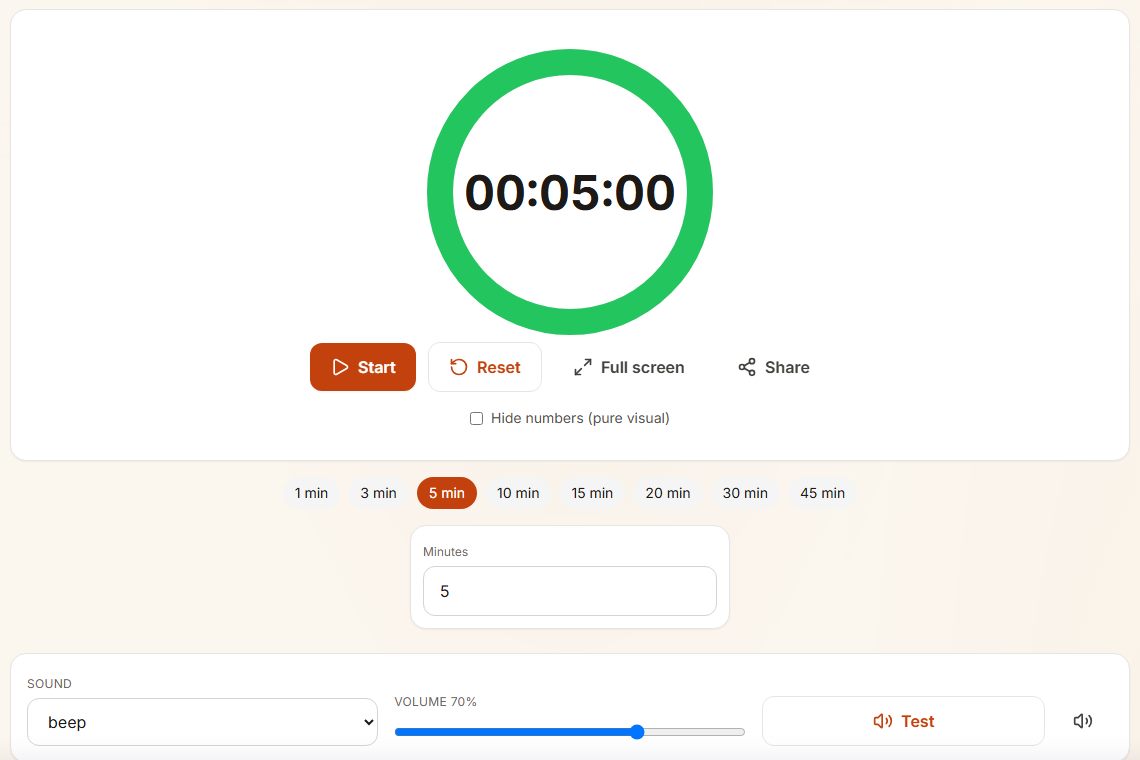
- As time runs out the ring empties and changes colour from green to amber to red, so children can read it without reading numbers.
- Hide numbers removes the digits, leaving only the ring.
- The preset row covers the lengths used most in classrooms; the Minutes box takes any other length.
Suggested visual-timer lengths by age
| Age | Good length | Typical use |
|---|---|---|
| Toddler (2–4) | 2–5 min | Tidy-up, taking turns, toothbrushing |
| Primary (5–9) | 5–15 min | Homework starts, screen-time limits |
| Tween (10–13) | 15–30 min | Study blocks, chores, practice time |
| Teens & adults | 25–45 min | Focus sprints, ADHD time-blindness aid |
Why a shrinking disc helps
Young children cannot yet read "7 minutes left", but they can see that the coloured part is getting smaller. The disc turns an abstract number into something they can watch, which makes transitions like "tidy-up time" much less of a battle.
Adults with ADHD often find the same thing: seeing time disappear is more motivating than reading digits.
Routines that work well with it
Morning routine: 10 minutes for getting dressed, 15 for breakfast, 5 for shoes and bags. Run one visual timer per step and let the child press Start.
Screen time: agree the length before the screen goes on, start the timer together, and give a two-minute warning. For homework lengths by age, see Pomodoro for kids.
When to use the visual timer
- Young children — "clean up before the colour runs out" is far clearer than "you have 5 minutes".
- Classrooms — project the disc so the whole room sees the time left.
- ADHD and focus support — a shrinking colour makes abstract time visible and reduces time-blindness.
- Autism and sensory needs — the no-numbers mode gives a calm, predictable countdown without changing digits.
- Occupational therapy and special education — instead of a physical timer device.
- Screen time and turn-taking at home — a visible limit kids can watch.
- Toothbrushing, time-outs and transitions — short, visual, drama-free limits.
How to use the visual timer
- Pick a length with the preset buttons (1 to 45 minutes) or type any number of minutes.
- Press Start — the coloured ring begins to empty and the time counts down.
- Tick "Hide numbers" for a colour-only display.
- Use full screen to project the disc on a board or shared screen.
- When the colour runs out an alarm plays. Press Reset to run the same length again.
Tips for visual timing
- Point out the green-to-red change the first few times so children learn that red means nearly done.
- For very young children keep it to 2-5 minutes so the change is visible.
- Pair it with a clear instruction ("reading until the red is gone") so the disc carries the rule, not your voice.
- Bookmark a preset link (for example ?m=5) to open the right length in one tap.
Visual timer FAQ
What is a visual timer?
A timer that shows remaining time as a shrinking coloured area, not just numbers. ClockAura's disc empties and turns from green to amber to red.
Is it good for kids and ADHD?
Yes. Seeing time shrink turns an abstract "5 minutes" into something concrete, which helps young children and people with time-blindness.
Can I hide the numbers?
Yes — tick "Hide numbers" to show only the colour.
Is this a free Time Timer alternative?
Yes. It works like the well-known red-disc Time Timer device, but free in your browser with no app and no account.
Does it work on a projector or shared screen?
Yes. Full screen scales the disc up for a whole room.
What is a visual countdown?
A visual countdown shows time as a shrinking coloured disc instead of numbers, so children who cannot read a clock yet can still see how much time is left. That is why visual timers are widely used for young kids, autism and ADHD routines.
What length should I use for a five-year-old?
Five to ten minutes for a focused task is plenty at that age. Short, successful blocks build the habit better than long ones that end in frustration.